First steps
The PC is built but now what???
Some items may come loose in shipping due to vibrations, movement, and removing the packaging itself. While this may seem basic to some, if you aren’t comfortable performing the final assembly, please consider hiring a professional.
Disclaimer: These are not official steps from ASUS. Please always consult manufacturers’ sites and documentation and read the manuals, warranty info, and other details provided by the manufacturer.
Check connections
Connect the power supply with either the 120v or 240v cable provided as appropriate to your home’s wiring. In the US, you will likely be using the 120v, which has two vertical pins + ground. Ensure the power supply is in the OFF (0) position.
Always ensure your computer and power supply are turned off when connecting or disconnecting components.
Check all connections but especially pay attention to the GPU power cable at the front and the CPU power cables at the top.
While it shouldn’t be necessary, you may need to reseat the graphics card and/or RAM if you have trouble starting, again, with the computer and power supply turned off.
The graphics card has a metal bracket attached to the side and a frame around the rear IO ports so it should not come loose or sag.
If you do remove or reseat the GPU, you will need to first remove the cables from the back and the bracket from the front side.
Connect keyboard and mouse into the rear inputs and connect the monitor to the back of the GPU rather than the rear IO panel.
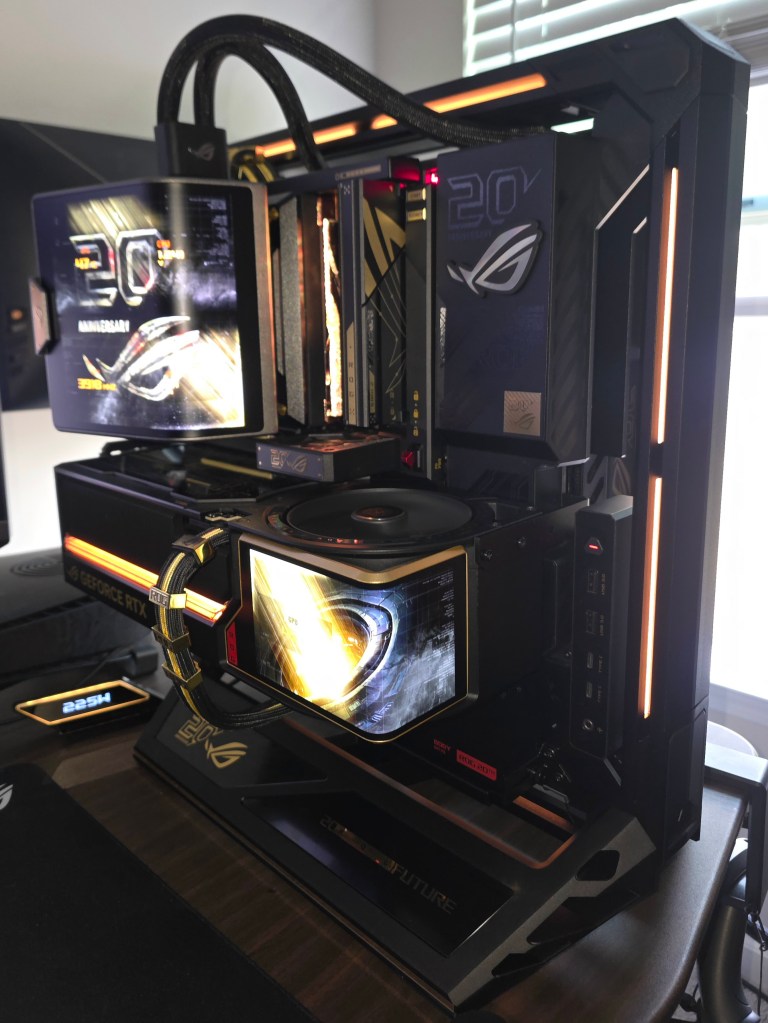
Connect the large screen to the CPU cooler. Slide into the top notch first, then press on the bottom behind the screen (do not press on the screen itself) until the button latches.
The smaller screen attaches to the GPU magnetically.
Connect the provided USB (C->A) cable from the USB C on the back of the GPU to a USB A port on the rear IO panel.
Connect the magnetic fan under the RAM modules so the text and logo is right-side up. This cools the memory.
Connect to the internet.
Starting up for the first time
Turn on the power supply to the (1) position. Windows 11 is preinstalled. Start the computer and follow the steps in the installer to sign in and activate windows.
NOTE: very occasionally, (usually on first boot after hardware or certain BIOS changes,) booting can take longer than usual. Please wait several minutes.
EXPO is already set and memory training completed. You should get a smooth, fast startup. Please do not modify BIOS settings prior to completing initial setup. Note that BIOS and Firmware changes are risky and you should always reference the documentation and manuals from the manufacturers.
Installation and updates
NOTE: While applying installations, each time you’re prompted to reboot, I would reboot, sign back in, wait for everything that runs on startup to complete, then reboot a second time.
NOTE: manufacturers sites and applications are subject to change. This writing is confirmed as of 10/28/2026
After Windows installation finishes, reboot twice and then complete the following.
Asus Driver Hub
ASUS Driver Hub will prompt in notification tray. install that. It will direct you to a site to install the driver hub and then run a scan to see what drivers you need. Click allow when prompted to allow access to other apps/devices/services. Install all updates there.
https://driverhub.asus.com/en
Microsoft
Install necessary Windows updates and Microsoft Store updates. After completing this initial setup, come back and consider whether you may need some of the optional updates or features.
Nvidia
Install Nvidia app. Then install the graphics driver once the app is finished installing. As the graphics driver installs, the screen will go dark, potentially multiple times.
https://www.nvidia.com/en-us/software/nvidia-app/
Asus Download Center
https://www.asus.com/us/support/download-center/
For each of the download pages, be sure to select your OS and notice there are separate tabs for drivers vs bios and firmware.
NOTE that BIOS and firmware changes are especially risky. Always consult manufacturers’ sites for latest information. As of 10/28/2026, the bios and firmware are up to date.
Download center – ROG Crosshair x870e Edition 20
Download Info hub which allows you to control the screens on the AIO and GPU.
Download armoury crate. (and consider the other downloads too, if needed).
https://rog.asus.com/us/motherboards/rog-crosshair/rog-crosshair-x870e-edition-20/helpdesk_download/?model2name=rog%20crosshair%20x870e%20edition%2020 (then select your operating system)
Download Center – ROG Astral GeForce RTX 5090 Edition 20
Download gpu tweak III (perhaps other downloads too, if needed)
https://rog.asus.com/us/graphics-cards/graphics-cards/rog-astral/rog-astral-rtx5090-p32g-edition-20/helpdesk_download/?model=rog-astral-rtx5090-p32g-edition-20 (then select your operating system)
GPU tweak III
Power Detect and Rog Equalizer should be on.
You might need to manually raise the fan speeds, apply, then click back to auto for the fan speeds. On a fresh install, for some, the fan speed will get stuck on low until it’s changed and set back to auto.
Setup Level Sense (top right.) If your desktop is subject to movement, you may need to increase the tolerance threshold. I’m personally using 0.75 degrees.
Armoury Crate
Go to settings, then ‘update center’ in armoury crate after the install finishes. Install everything from the update center’s software and drivers.
Also go to fan xpert within armoury crate and run the auto tune.
You’ll find the lighting control under aura sync within the armoury crate app. It is an optional installation, but needed to control the aura RGB lighting on the case, power supply, motherboard, graphics card, and memory. For gold aura RGB lighting, I used the RGB ratio of 183, 80, 0.
Your initial install likely only let you choose between light and dark theme. You may want to change your theme to the 20th anniversary version now.
Initial setup – Final Steps
In windows settings, Enable HDR if your monitor supports it. Do the HDR Display Calibration.
Enable game mode in windows if needed.
Choose a power plan in Windows and select the one that is right for you. Likely High Performance or Game Turbo.
Reboot, sign back in wait for startup to complete and then reboot again.
Join the PCDIY forums on Heartbeat
https://app.heartbeat.chat/asus-pcdiy/feed
Register hardware at https://rog.asus.com
From GPU Tweak III, consider running the OC Scanner in the top right near the Level Sense feature.
If you do add more storage, the easiest place is likely the DIMM.2 slot next to the system memory. More slots are available on the board behind the GPU.
Checking future updates
Windows update
Microsoft Store updates
Nvidia App graphics driver
Armoury crate update center
Asus driver hub
Some device pages have links to the download center to check for latest firmware, bios, etc. but you can always find them by going directly to the download center page for each device. Info hub, for example, has a link to check for latest firmware on the cooler and GPU screens, but it just links to the download center. Note, manufacturer’s website and guidance is subject to change. Always reference the latest information from manufacturer.
You may have additional updaters depending on your other hardware (e.g. keyboard, mouse, monitor, headset…)
Troubleshooting
Windows and Microsoft Store updates may be finicky if your system clock is not synced.
If you run into problems with Armoury crate features, two reboots will typically fix it, but occasionally users report needing to uninstall using the official armoury crate uninstall tool, reboot (twice), then run the latest installer, reboot two more times, and go to armoury crate update center again. (Similar steps may help for issues you might encounter with other software)
If it’s been 10 minutes after trying to start or restart the computer and you think it’s stuck, try pressing Ctrl+ALT+Delete twice to restart. If that doesn’t work and you’re sure it’s stuck Power off the machine with the power button on the PC and double check the connections. The motherboard code can help with potential failures, although this is already tested and stable prior to shipment so you should not need to worry.
Links
https://driverhub.asus.com/en
https://www.nvidia.com/en-us/software/nvidia-app/
https://www.asus.com/us/support/download-center/
https://rog.asus.com
https://rog.asus.com/us/motherboards/rog-crosshair/rog-crosshair-x870e-edition-20/helpdesk_download/?model2name=rog%20crosshair%20x870e%20edition%2020
https://rog.asus.com/us/graphics-cards/graphics-cards/rog-astral/rog-astral-rtx5090-p32g-edition-20/helpdesk_download/?model=rog-astral-rtx5090-p32g-edition-20
https://rog.asus.com/us/power-supply-units/rog-thor/rog-thor-3000t3-gaming-edition-20/helpdesk_download/?model=rog-thor-3000t3-%20gaming-edition-20
https://rog.asus.com/us/cases/rog-gr20-edition-20/helpdesk_manual/?model=rog%20gr20%20edition%2020
For advanced information see
LTT how to build a PC: https://youtu.be/s1fxZ-VWs2U?si=02tOOHkigGfI3KNE
Tech Source: https://youtu.be/Mho0M1Ns0Rw?si=PBuqwesX7EEG6h0z
Common mistakes from jayztwocents: https://www.youtube.com/watch?v=-8LMML_EiMg
What to do after building a computer: https://www.youtube.com/watch?v=RYYoCXh2gtw&t=578s
Model info
ROG Astral GeForce RTX 5090 Edition 20
ROG CROSSHAIR X870E EDITION 20
ROG Thor 3000W Titanium III Edition 20 (ROG Equalizer)
ROG GR20 Edition 20
AMD 9800x3d
G.SKILL Trident Z5 Royal Neo Series DDR5 RAM (AMD EXPO) 32GB (2x16GB) Up to 6000MT/s* CL28-36-36-96 1.40V Desktop Computer Memory U-DIMM – Gold (F5-6000J2836G16GX2-TR5NG)
Samsung 9100 pro 2TB NVME (installed in the first M.2 slot, under the CPU cooler and above the GPU)


Leave a Reply